You've created a sign up and invited your group, but now you need to communicate additional information. Or, plans have changed and you need to update your participants. No sweat! With our handy email tools, you have multiple options for sending messages to your audience. Plus, you can view helpful data like opens and click-through rates.
Use SignUpGenius Email Tools to:
- Send reminder sign up invites to people who were previously invited but have not signed up.
- Send a message about the event only to people who have signed up.
- Notify specific groups on your invite list that an event or slot has changed dates or was canceled.
- Email specific people who are signed up on certain slots or dates.
- Send an invite to an additional email address that was not listed in the original group.
- Attach waivers, photos or other files in an email message.
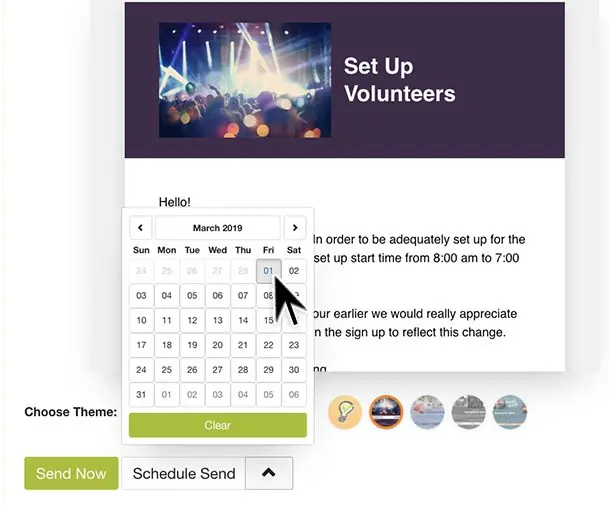
- Apply a custom theme to your emails to match your organization's branding or logo.
- Schedule emails to automatically send at a specific date and time.
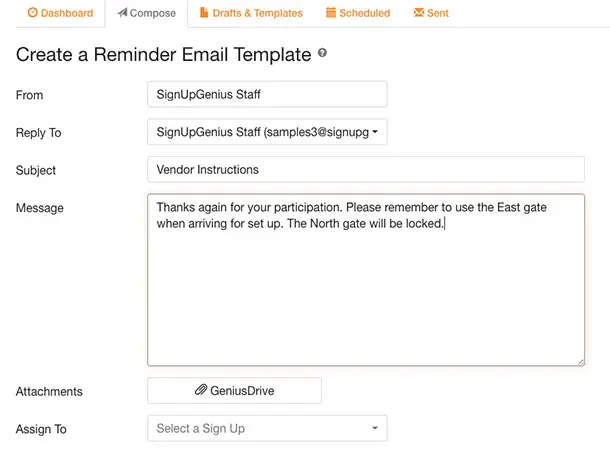
- Compose email templates for confirmation and reminder emails.
Composing an Email
Get started by clicking the "Messages" icon in your account. Then, select the "Compose" tab.
If you need to send an invitation to anyone not originally invited, select the option to "Invite people to sign up." You'll then have the option to "Manually enter emails," and the email address will automatically be added to the original invite group assigned to the sign up.
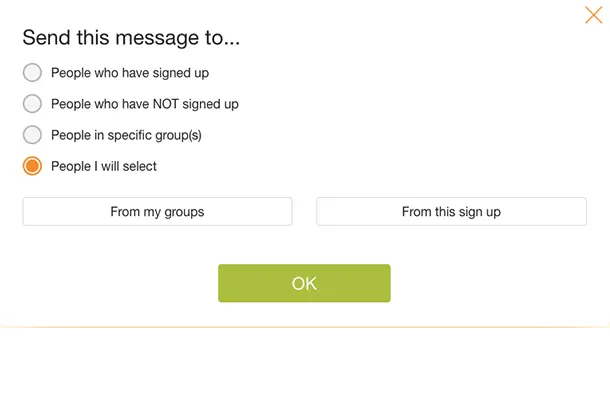
If you aren't inviting people to sign up, select the option to "Email people participating in a sign up." Then, select the sign up that is related to the message. With our premium features, you can select multiple sign ups, a specific tab group or direct your audience to the index page listing all active sign ups. Next, choose who you want to send the message to.