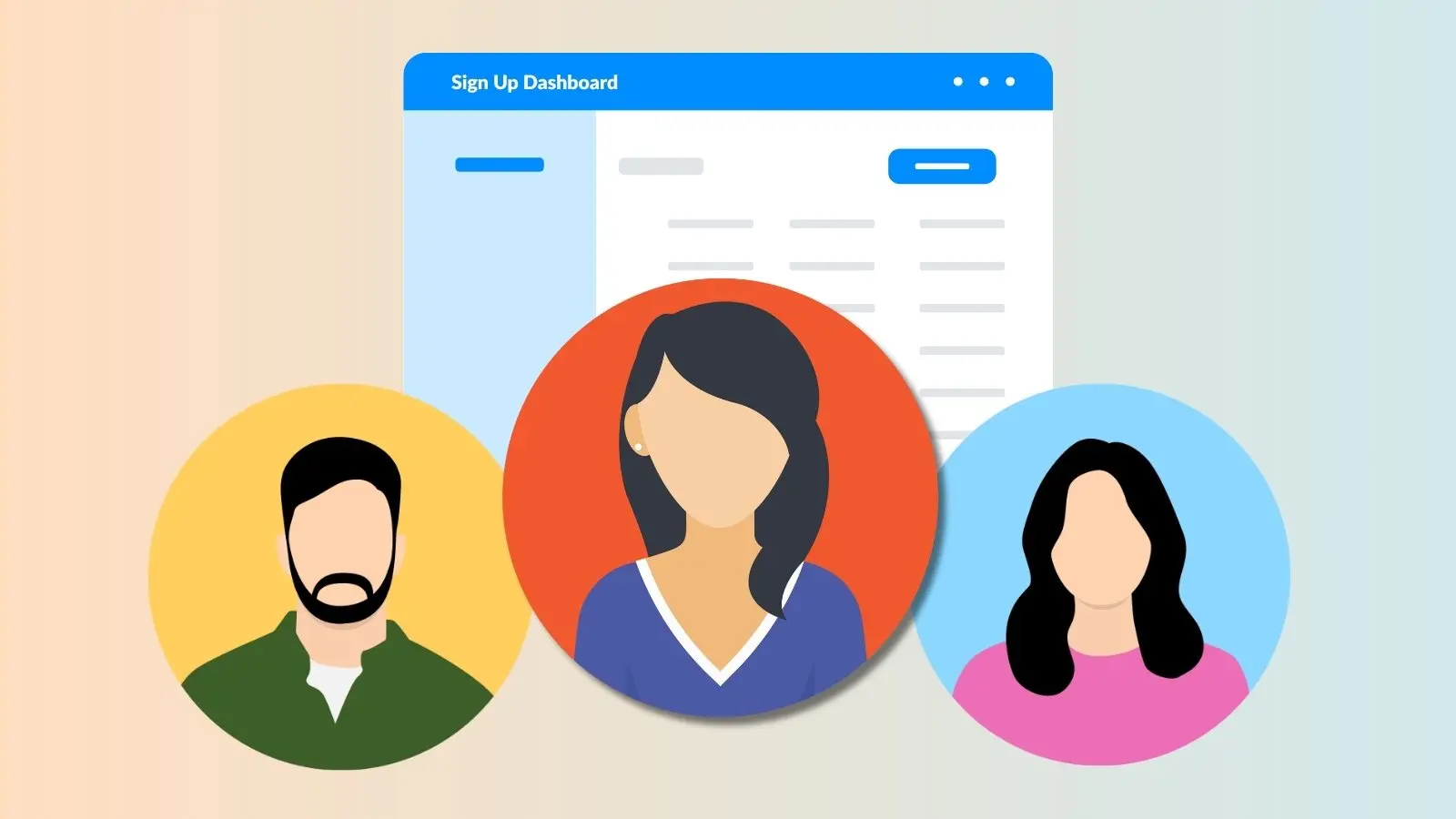

If you're the only person who can manage your sign ups, one vacation or busy week can leave everything stuck. On Gold plans and above, you can add additional administrators to your account, each with their own custom permission level, so your team can share the work without everyone needing full access.
Add an Administrator to Your Account
- Log in and click the Admins icon on the left side of your dashboard.
- Click Add Custom Role.
- Enter a role name and a brief description if you'd like, then click Save.
- Click the Pencil icon next to the role to set which permissions that role should have, then click Save.
- Click the Person icon at the end of the role row, then click Assign People to Role.
- Enter the person's first name, last name, and email address.
- Check the box to send an email notification if you want to let them know right away.
- Click Save.

Genius Tip
You're automatically the Main Administrator with full permissions on your account. There's no need to add yourself to any role.
How Sub-Admins Log In
Once someone is assigned as an administrator, they'll get an email letting them know. If they don't already have a SignUpGenius account, they'll need to create one using the email address the notification was sent to. If they do have an account, they log in as usual.
From there, they'll see two options:
- Log in as Me, or Log in as Admin.
- To manage sign ups on the paid account, they need to choose Log in as Admin.
To switch back to a personal account, click the profile picture or initials in the top right corner, then select