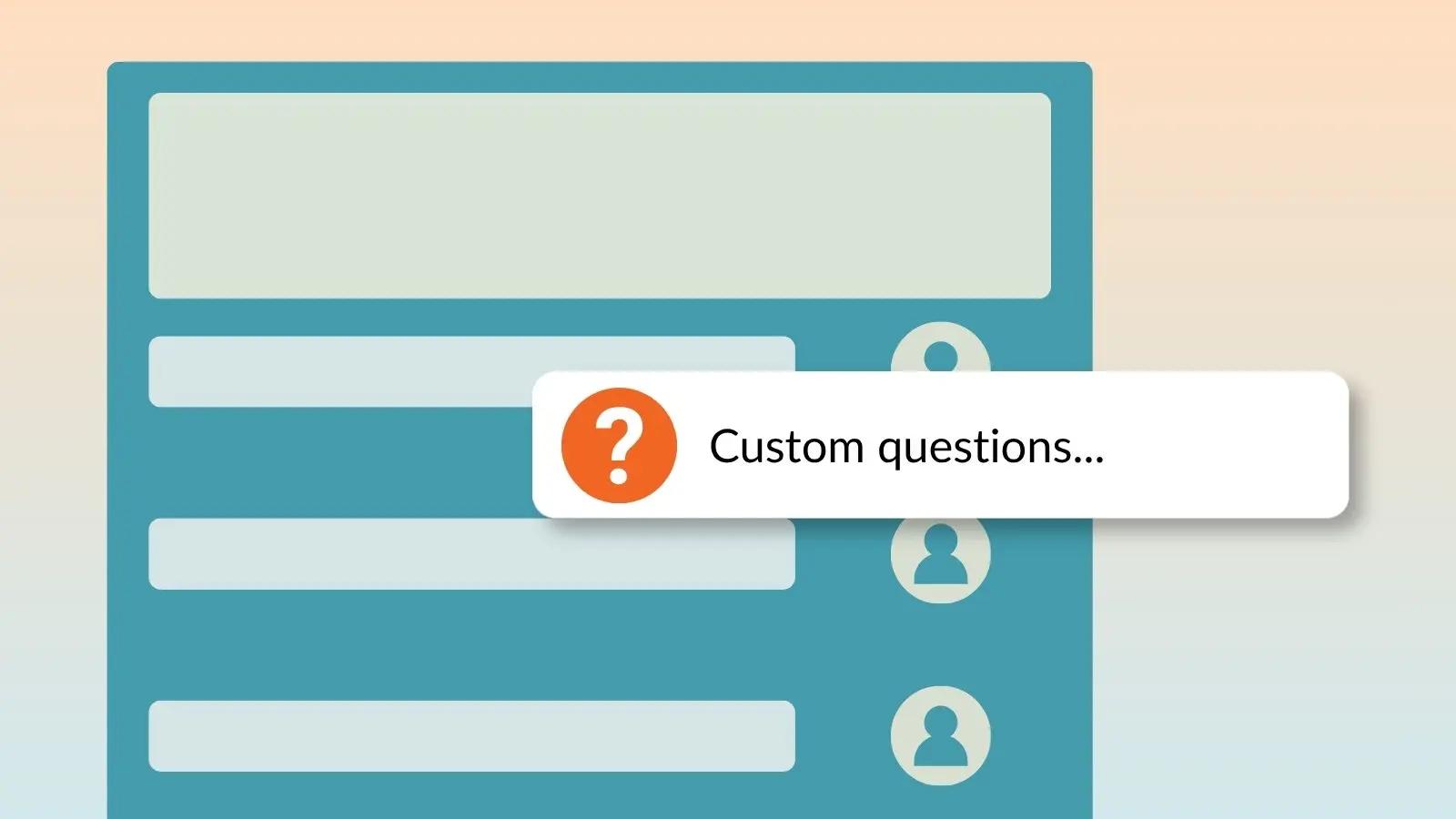

Paid accounts can add custom questions to a sign up, so you get exactly the information you need the moment someone signs up. T-shirt sizes, dietary restrictions, volunteer skills, or anything specific to your event, ask once and skip the follow-up emails.
How to Add a Custom Question
- From your Created sign ups, click the ellipsis icon (•••) next to the sign up and select Edit.
- On the Settings tab, click More under "Ask Participants For."
- Choose Add a Custom Question.
- Select an existing question, or create a new one.
- Enter your question text and choose the format.
- Decide whether a response is required or optional.
- Click Save.
👉 Custom questions are not available on RSVP Sign Ups
How Many Questions Can You Add?
The number of custom questions available depends on your plan level.
Compare plansViewing Custom Question Responses
Participant answers show up in your sign up reports, so you don't have to track them down individually.

Genius Tip
Run a List of Sign Ups for Export to Excel report to see every custom question response in one place.
See how to create reports and export sign up data