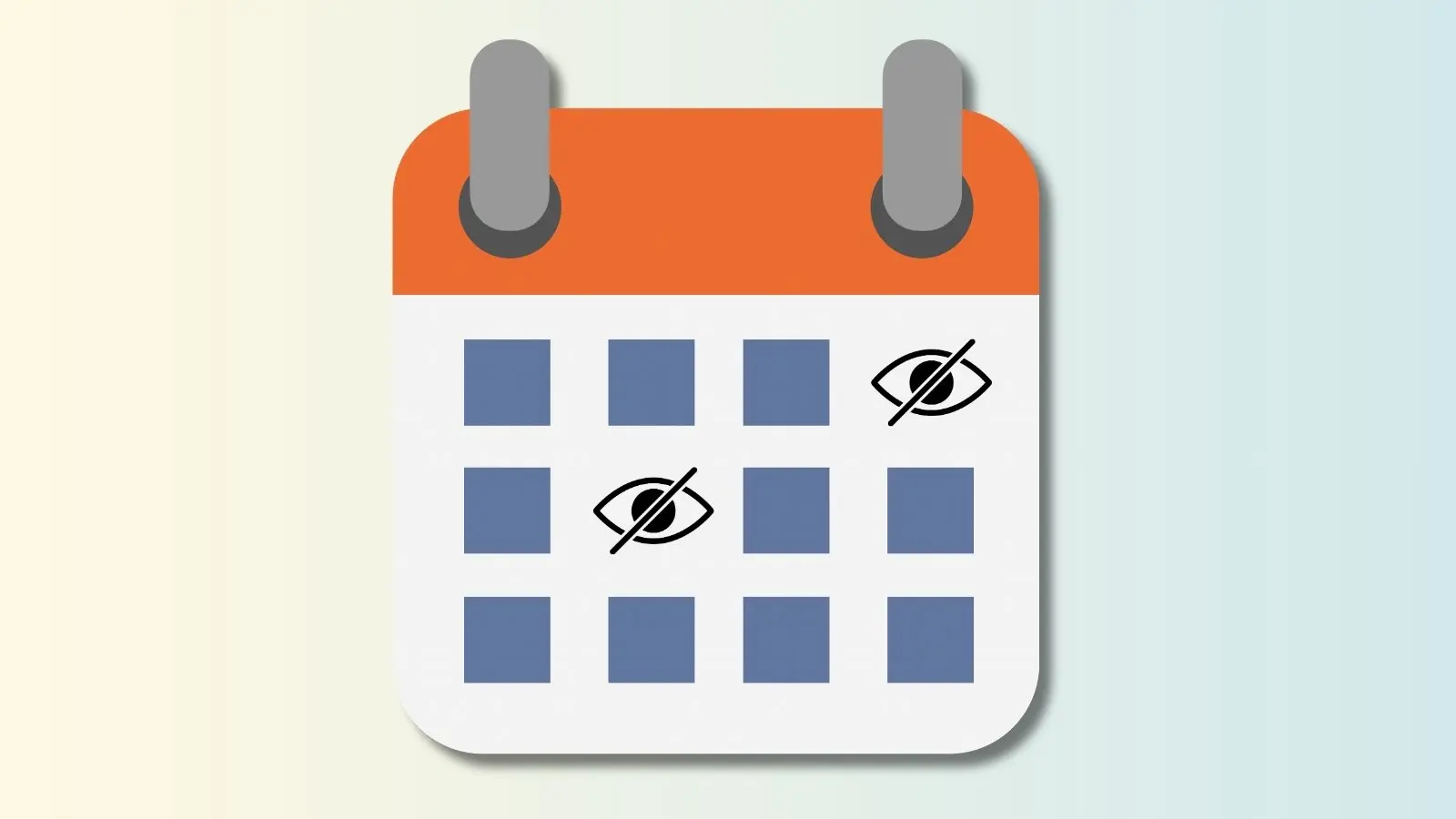

A sign up that runs for months can get long fast, and nobody wants to scroll through last month's filled shifts to find this week's open one. Premium subscribers can automatically hide past or future dates, so participants only see what's current.
This works well for a lot of situations:
- Work shift or vacation schedules that run all year
- School lunchroom or media center sign ups
- Quarterly nonprofit or church volunteer schedules
- Full theater season where you only want the current show visible
- Open mic night slots where you'd rather not let performers book out the whole month at once
Use the hide date feature to streamline your sign ups and reduce administrative work.
How to Hide Past or Future Dates
- Log in to your account and go to your Created sign ups.
- Click the ellipsis icon (•••) next to the sign up and select Edit.
- On the Settings tab, scroll down to the Preferences heading.
- Click the Restrictions tab.
- Click the + symbol next to Hide Past/Future Dates.
- Choose whether to hide past dates, future dates, or both, and set your parameters.
- Click Save
Hidden Dates Aren't Gone
Hiding past dates just keeps them out of participant view. You can still access that data anytime by running a report on the sign up.
See how to run a reportOther Ways to Control What Participants See
Hiding dates is one of several ways to manage what participants can and can't see on a sign up. A few others worth knowing:
- Hide names and comments so only you, as the creator, can see who's signed up.